Playing LOTRO at 2K and 4K
The MMORPG The Lord of the Rings Online runs on a broad spectrum of PCs. From archaic laptops to high end gaming rigs, although it may require a bit of tweaking. At present, the optimal way to play the MMO is at a resolution of 1920x1080 (FHD) with the graphics setting maxed out. The graphics are sharp and the UI is readable. However, a growing number of gamers are now using 2K and 4K monitors. You can play LOTRO at higher resolutions such as 2560×1440 (QHD) and 3840x2160 (UHD) and the game looks great. However, the UI does not scale and so is very small on 2K and 4K monitors. The skill icons on the quickslots (shortcut bars) and the in-game text become difficult to see at these resolutions, which deters some players from using them. It is a known issue that Standing Stone Games are attempting to address but it is unlikely to be resolved any time soon.
The MMORPG The Lord of the Rings Online runs on a broad spectrum of PCs. From archaic laptops to high end gaming rigs, although it may require a bit of tweaking. At present, the optimal way to play the MMO is at a resolution of 1920x1080 (FHD) with the graphics setting maxed out. The graphics are sharp and the UI is readable. However, a growing number of gamers are now using 2K and 4K monitors. You can play LOTRO at higher resolutions such as 2560×1440 (QHD) and 3840x2160 (UHD) and the game looks great. However, the UI does not scale and so is very small on 2K and 4K monitors. The skill icons on the quickslots (shortcut bars) and the in-game text become difficult to see at these resolutions, which deters some players from using them. It is a known issue that Standing Stone Games are attempting to address but it is unlikely to be resolved any time soon.
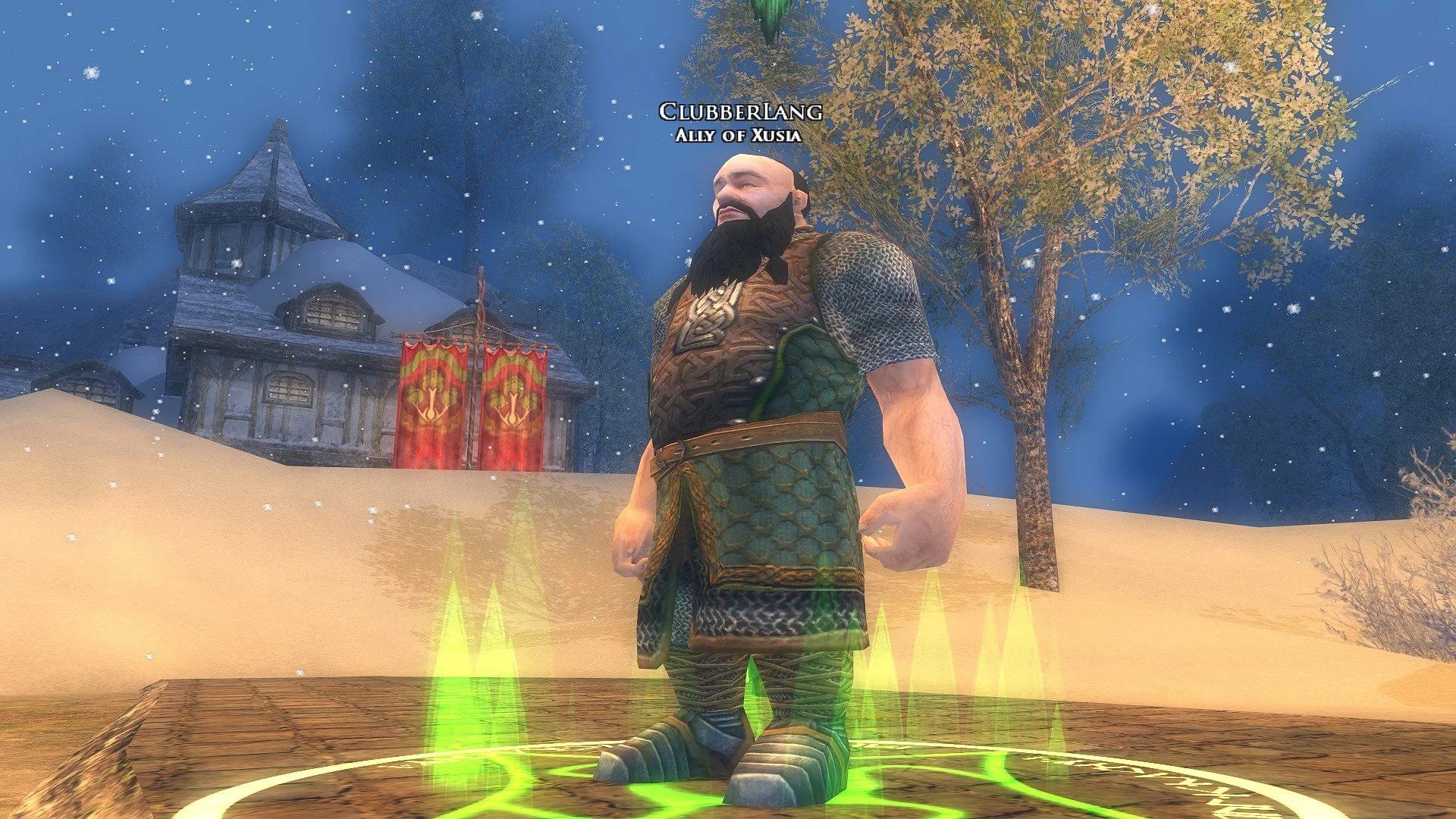
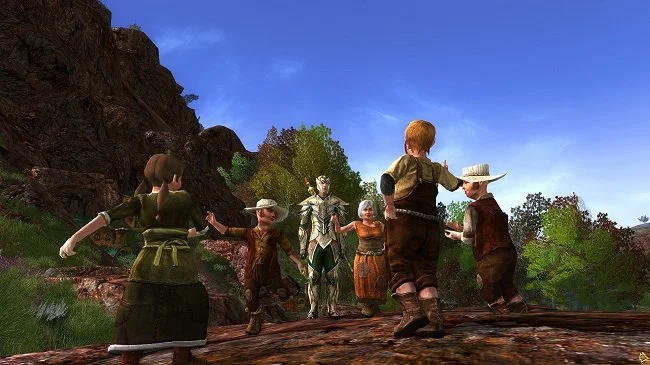
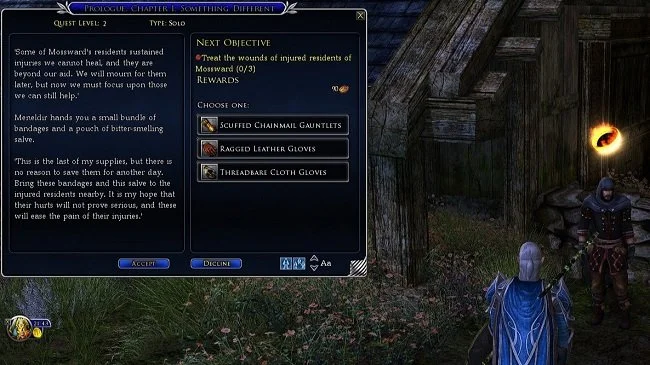
LOTRO running at 2560 x 1440 resolution with non-scaling UI
Naturally, there are workarounds which address this UI issue but they are just that, workarounds and as such are not perfect. The most common solution is to upscale the game from FHD to QHD/UHD. This way the UI remains readable. One way to do this is to use your graphic card’s software, such as AMD Adrenalin or GeForce Experience. Set the screen resolution in LOTRO to 1920 x 1080 and then use your GPU software to upscale the image to either 2K or 4K. This does work but setting it up is quite complex. There are presets for more recent gaming titles but not LOTRO, so it has to be configured manually. Furthermore, upgrades to the software can sometimes reset these settings. An easier method is to use a third party tool, such as Lossless Scaling which not only efficiently upscales the game resolution but can also provide frame generation if required.
Lossless Scaling is developed and published by THS and is a popular third-party utility primarily used by PC gamers. It applies various upscaling algorithms (including its proprietary LS1 and LSFG frame generation) to games and applications that lack native support for technologies like NVIDIA DLSS or AMD FSR. It is available for purchase via Steam or direct from the developer and costs $6.99 (although it is frequently discounted to half that price). Lossless Scaling makes the UI and text on high-resolution monitors much larger and more readable by scaling up the lower-resolution image. Unlike some mods, Lossless Scaling operates as a post-process and does not inject anything into the game's code, so it should not trigger anti-cheat systems or cause crashes. The results are good although the upscaled icons on the quickslots can be a little soft focus.
Quick guide to using Lossless Scaling
Download and run Lossless Scaling: Purchase and install Lossless Scaling from Steam, and let it run in the background.
Configure LOTRO: Launch The Lord of the Rings Online and set the game to run in windowed mode.
Set the in-game resolution: Within the game's settings, choose a lower resolution that matches your monitor's aspect ratio (e.g., \(1920x1080\) for a \(16:9\) monitor, even if your display is \(4K\)).
Activate scaling: In the game, press the Lossless Scaling hotkey (Ctrl+Alt+S by default) to start the scaling process.
Adjust settings: For a better experience, consider enabling "clip cursor," adjusting "cursor speed," and setting "scaling type" to LS1 in the Lossless Scaling application's settings.
Troubleshoot: If the game freezes, try disabling features like frame generation or performance mode in Lossless Scaling's settings, as these can sometimes cause issues.
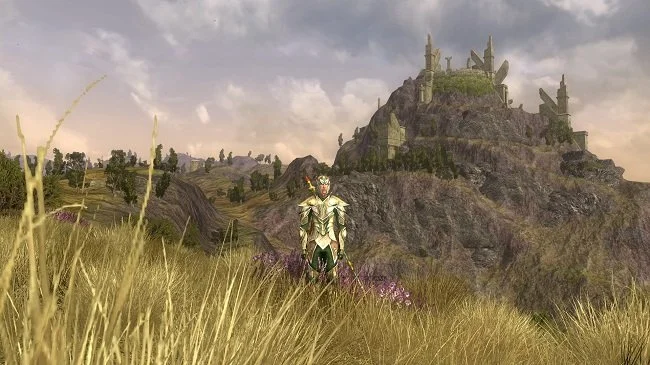
LOTRO running at 1920 x 1080 resolution and upscaled to 2K using Lossless Scaling (Note the larger UI)
I have been using Lossless Scaling for a week and so far I’ve not encountered any major issues. The upscaled image looks good and the game runs smoothly. As mentioned earlier, the trade off in scaling the UI is that it doesn’t look as sharp as it does in its native resolution. There are some artifacts and tearing but the increase in size is far better on the eyes. If you have HDR compliant monitors, ensure that HDR support is toggled in the Lossless Scaling settings or else LOTRO looks over exposed with washed out colours. Until SSG resolves this matter, this is by far the best solution around. The nominal price is worth every penny. Furthermore, it can be used with other games and if you have a slightly older GPU, its ability to generate frames can help with more demanding titles.





New Monitors
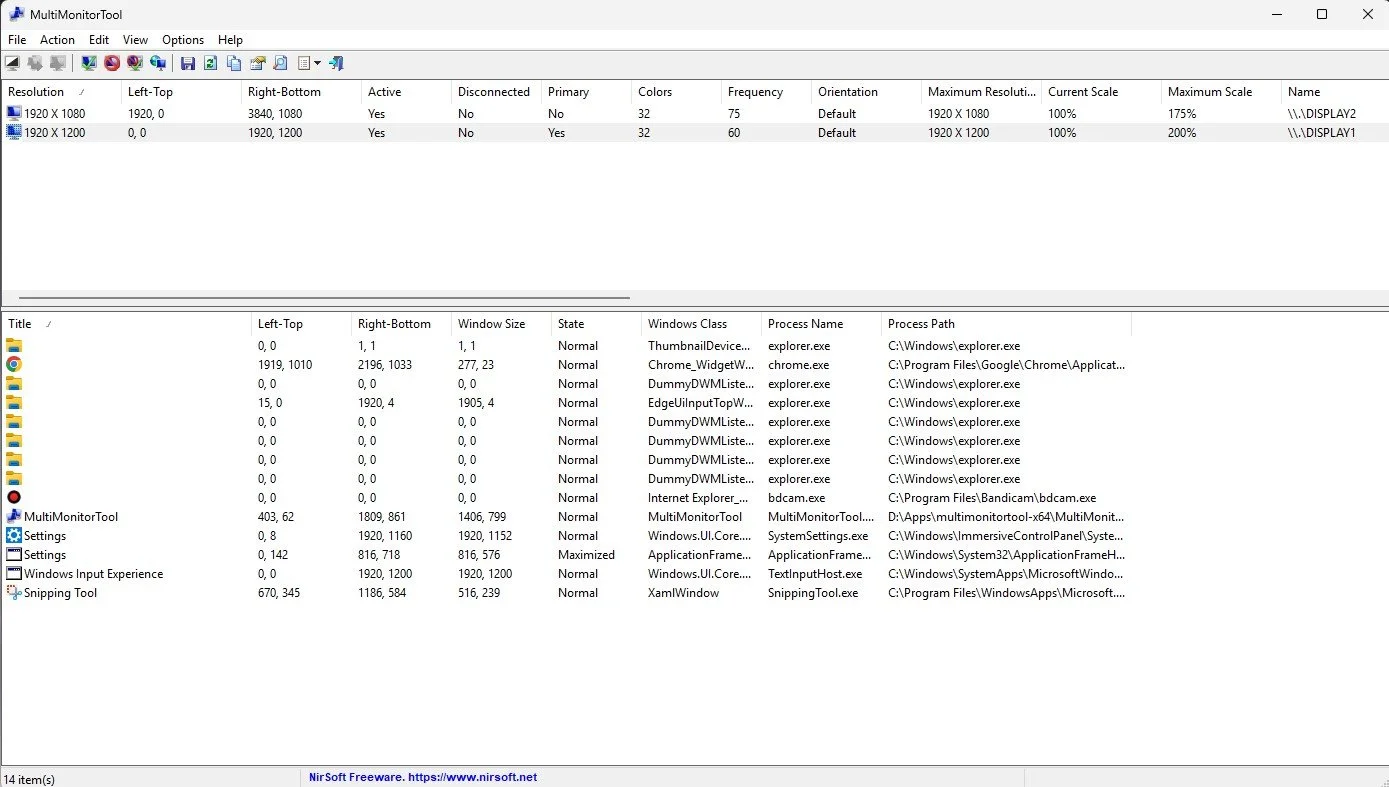
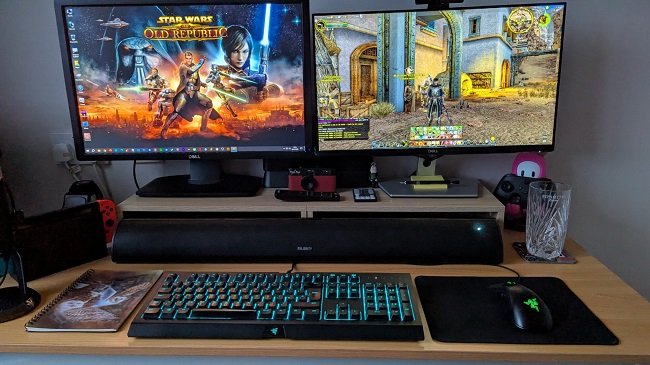
I use two monitors with my PC, as I find having the additional screen “real estate” invaluable when writing or playing games. Both monitors that I’ve been using up to now are somewhat old and they are not exactly the same size or resolution, although both are FHD. I have previously written about the problems I’ve had trying to get certain games and programs to display on specific monitors and the lengths I’ve had to go to to resolve this issue. To cut a long story short, I recently decided to replace both monitors with larger models with a higher resolution. Mainly because my eyesight is not what it used to be. I see best when working with a bright screen that can produce clear text. New monitors would also address my ongoing screen output problem. Hence, I set myself a reasonable budget and began researching appropriate replacements.
I use two monitors with my PC, as I find having the additional screen “real estate” invaluable when writing or playing games. Both monitors that I’ve been using up to now are somewhat old and they are not exactly the same size or resolution, although both are FHD. I have previously written about the problems I’ve had trying to get certain games and programs to display on specific monitors and the lengths I’ve had to go to to resolve this issue. To cut a long story short, I recently decided to replace both monitors with larger models with a higher resolution. Mainly because my eyesight is not what it used to be. I see best when working with a bright screen that can produce clear text. New monitors would also address my ongoing screen output problem. Hence, I set myself a reasonable budget and began researching appropriate replacements.
While reading online, I learned that some people are using large screen TVs as an alternative to traditional PC monitors. This does come with some caveats. OLED TVs are particularly favoured due to the fact that each pixel is self-lit, which allows for strong blacks, an extensive contrast ratio, and superior viewing angles. They also have fast response times, making them great for gaming. 43 inch screens seem to be the most desirable choice. However, there was a lot of debate about how well the screens handle text and its respective clarity. Also, sitting in front of such a large screen is not for everyone, with some people finding it visually overwhelming. I went as far as going to an electrical retailer and actually standing close to such a screen to see if such a choice was for me. I quickly determined that it was not.
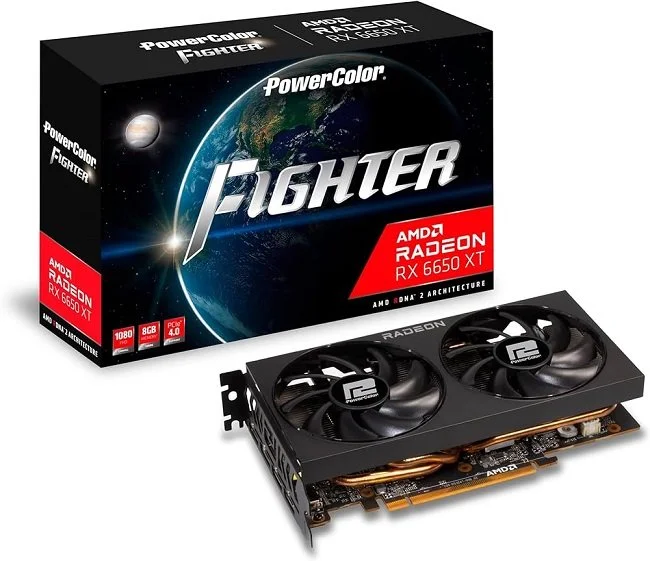
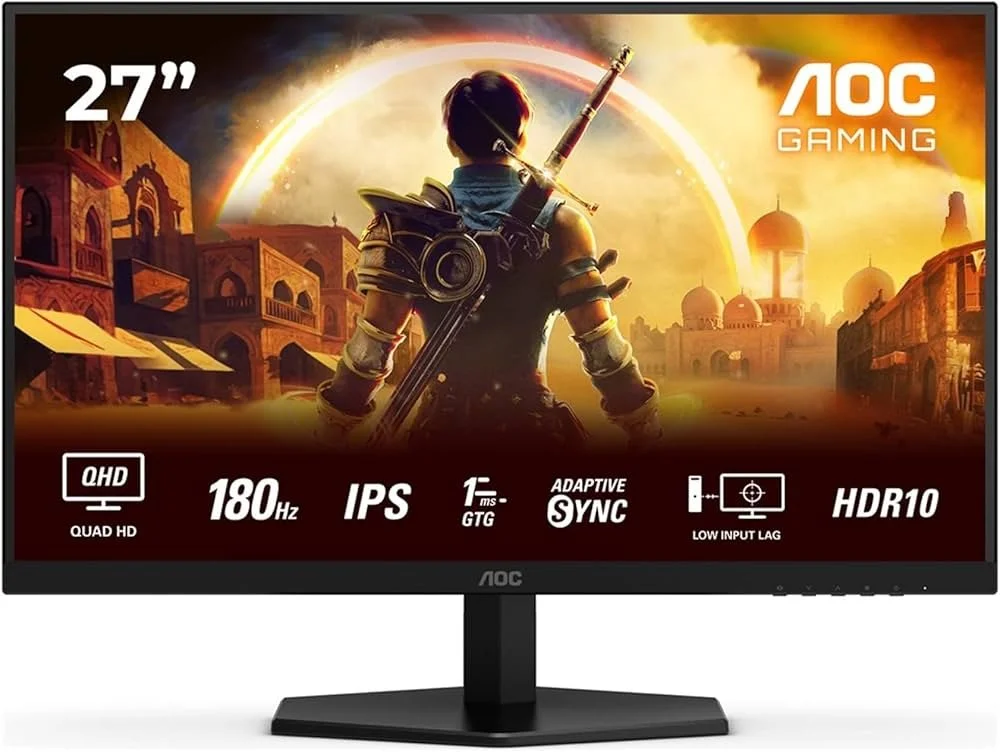
Having dismissed this option, I began looking into what screen resolutions my graphics card could comfortably handle. I have an AMD Radeon RX 6650 XT which at present handles all my gaming needs well at 1920 x 1080 FHD. Opinion seems to be mixed as to how well it copes with 2560 x 1440 QHD and what framerates it can sustain. However, the performance offered by my GPU is sufficient for my needs and if there are any problems, I can always default back to FHD and upscale to 2K. With this in mind I began looking for 27 inch gaming monitors. Fortunately there are plenty of “Black Friday” sales currently ongoing and I managed to purchase two AOC Q27G42XE Quad HD 27" IPS LCD Gaming Monitors. These usually retail at £149.00 but are on sale for £109.00 at Curry’s website. This was well within the £300 budget which I had set.
Upon delivery of my new monitors, I took the opportunity to disconnect my PC and all peripherals and comprehensively clean my desk and the surrounding area. I also removed some devices that are no longer being used, such as my Nintendo Switch along with a plethora of redundant cables. So far I have not run into any major issues with the new monitors. The screens provide excellent clarity when web browsing and working with Google Docs. Video content is also sharp, with vibrant colours, due to the HDR support. Some older video games have required some tweaking but nothing too complex. More recent titles are maintaining an acceptable framerate at 1440p, although it is pushing the GPU to its performance limit. Overall, I am happy with this upgrade. It keeps my PC setup viable and kicks any future upgrade a little further down the road.